OneDrive File Backup
Backing up your files with OneDrive
For NVSD Staff
OneDrive is a cloud file backup solution that can be used to automatically back up your important files. After setting up OneDrive, all files you save to your local Documents, Pictures, or Desktop folders will automatically be copied to OneDrive.
If you are switching to a new device, or if your computer breaks or is stolen, you will be able to restore your OneDrive backup on the new computer.
Set up automatic back up
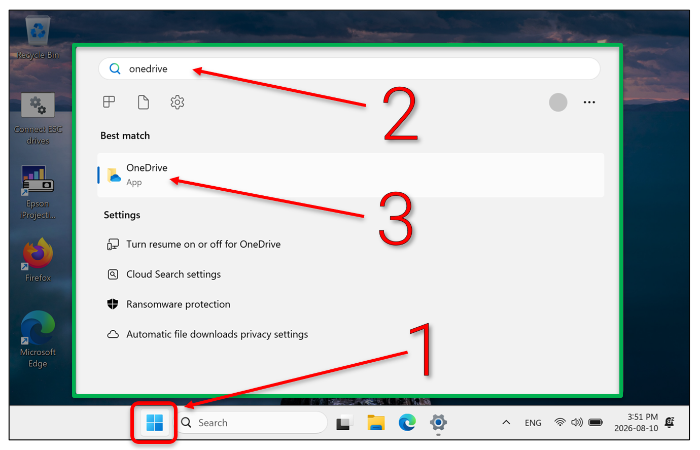
Step 1: Search in the Start Menu for OneDrive and launch the OneDrive app. If your OneDrive folder opens, or if it looks like nothing happened, skip to Step 5.
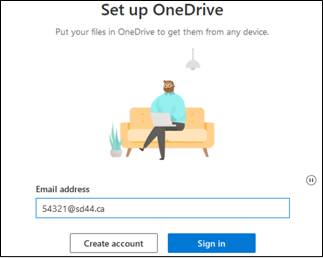
Step 2: If a "Set up OneDrive" window appears, enter your NVSD email address and select Sign in.
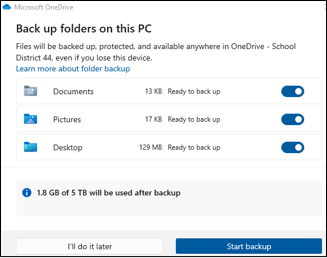
Step 3: Leave the defaults selected and click Start backup.
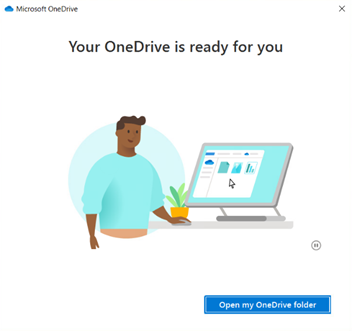
Step 4: Folder backup is now enabled and your files will silently be backed up. Click Open my OneDrive folder to finish the set up.
Step 5 (if you weren't prompted to sign in): Right-click the OneDrive icon (☁️) at the bottom right of the taskbar, then click the Settings icon at the top right > Settings.
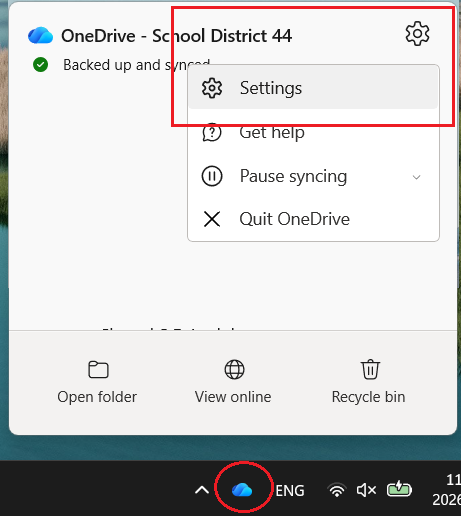
In the Sync and backup tab, click Manage backup. If any of the options aren't enabled, turn them on and click Save changes.
Backing up other folders and files
Click the OneDrive icon in your taskbar. You can open your OneDrive folder by clicking "Open folder" or by double-clicking the OneDrive icon. For any files or folders that aren't included in the automatic backup above, simply drag and drop them into your OneDrive folder. To view the sync status of all of your files, click the OneDrive icon.
Backed up files will have a cloud icon next to them in the OneDrive folder.
Accessing your backed-up files
- You can access your OneDrive files on any device by logging in to https://sd44o365-my.sharepoint.com/.